
Searching Residents &
Resident Summary
- Open the Resident list view and locate the enhanced search box in the upper-right corner.
- Use the search box to find a resident by entering any of the following:
- first name (full or partial)
- last name (full or partial)
- MRN Number
- Room #
- Select the correct resident from the filtered results (example shown: Margaret Chen).
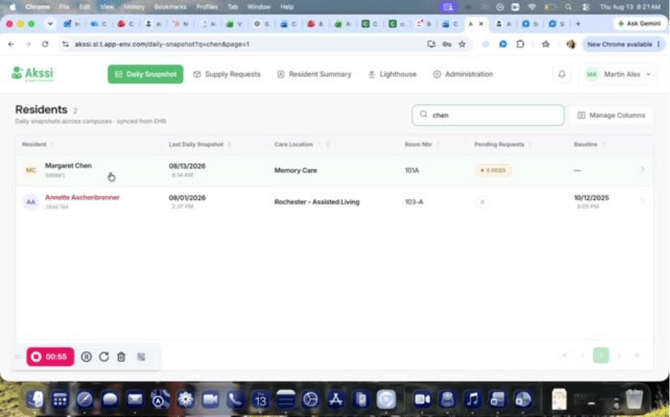
- From Daily Snapshot, open the resident to add a Daily Snapshot when needed.
- Review any Pending Supply Requests shown on the Daily Snapshot screen.
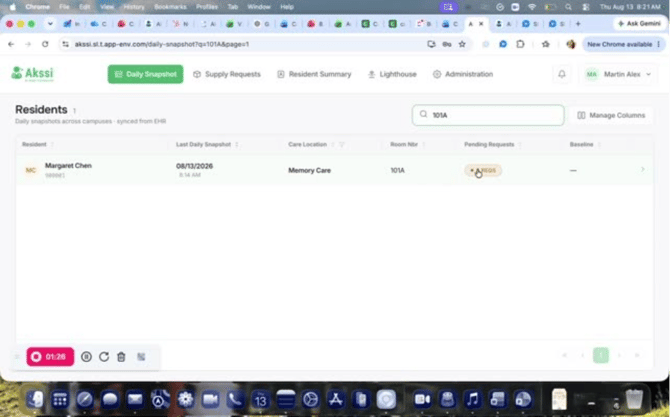
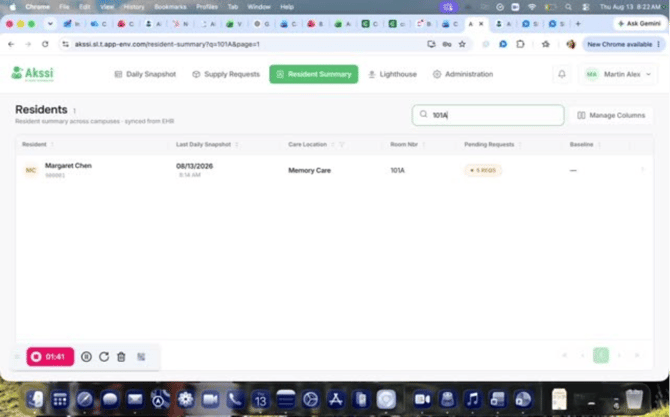
- Navigate to Resident Summary and repeat the search to locate the same resident there.
- Confirm you can view the same high-level information in Resident Summary that you saw in Daily Snapshot.
- Click into the resident record to view additional details within Resident Summary.
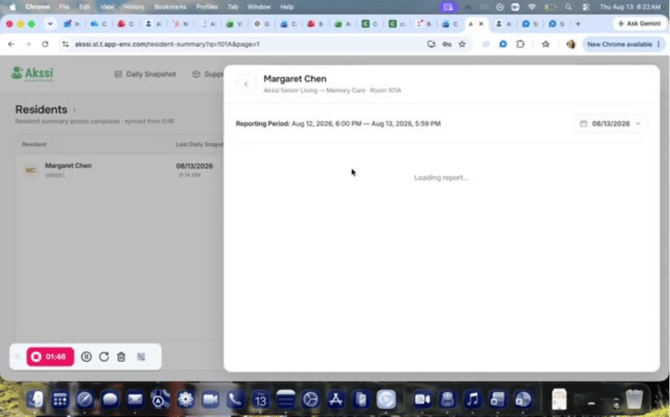
- Review ADL information, including assisted ADLs and any refused ADLs for the reporting period.
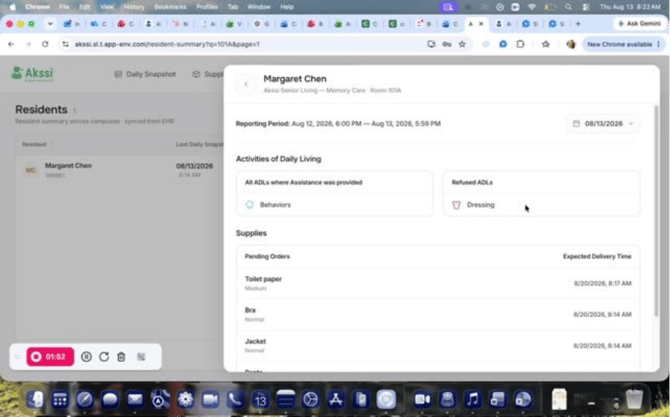
- Scroll to view Supplies information for the resident.
- Change the date using the calendar to review information for different days.
- Use the calendar view to identify days where Daily Snapshots were taken (shown as dots), then go back to review those entries.
- Customize your table by managing columns (for example, hide the Room Number column).
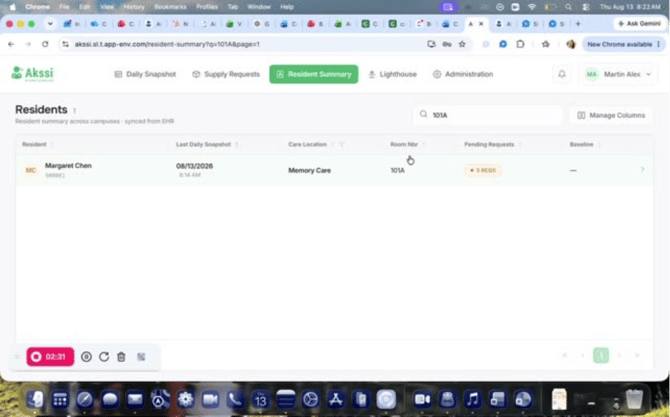
- Uncheck the Room Number column and save the change.
- Click Save Columns to apply the update and confirm the column disappears.
- Re-enable the column by checking it again and saving to make it reappear.