
- Navigate to Administration and open Roles & Permissions.
- Review the roles that are automatically created for your organization.
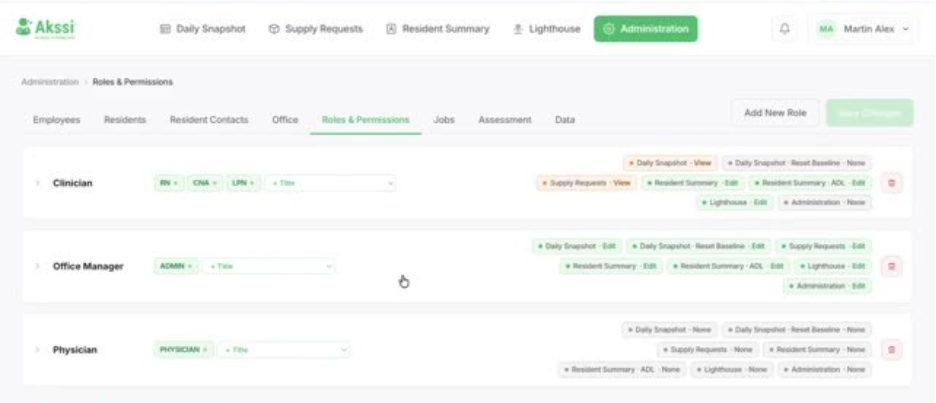
- Before creating any new roles, align with all relevant locations in your company—roles are not location-specific. Remember: roles are tied to job titles. Understand the impact: the system will not differentiate the same title across different locations (e.g., an RN in one location vs. another).
- When ready, choose the option to create a new role.
- In the role setup screen, enter a role name. Example: “RCA Role”.
- Select which titles should be associated with this role. The available titles are specific to your organization.
- Note that a title can only be associated with one role.
- For each system area, choose the appropriate permission level: No access, View only, or Edit. For areas that should not be accessible to this role, set permission to None. Keep certain permissions restricted (e.g., features intended only for leadership, such as specific supply request controls).
- Example: for Daily Snapshots, set permission to Edit (and configure options like Reset Baseline if applicable).
- Review selections to ensure they match expectations.
- Scroll down and click Save Changes.
- Once the role has been created, any existing employees with the titles associated with the new role will be assigned to that role and moving forward the system will automatically assign this role to anyone with those titles.
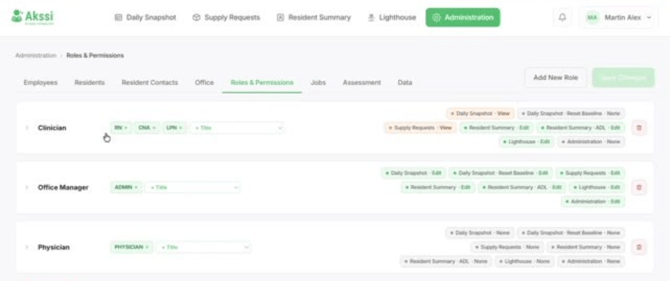
If a new role is needed, create it in coordination with leadership and other administrators.
- When ready, choose the option to create a new role.
- In the role setup screen, enter a role name. Example: “RCA Role”.
- Select which titles should be associated with this role. The available titles are specific to your organization.
- Note that a title can only be associated with one role.
- For each system area, choose the appropriate permission level: No access, View only, or Edit. For areas that should not be accessible to this role, set permission to None. Keep certain permissions restricted (e.g., features intended only for leadership, such as specific supply request controls).
- Example: for Daily Snapshots, set permission to Edit (and configure options like Reset Baseline if applicable).
- Review selections to ensure they match expectations.
- Scroll down and click Save Changes.
- Once the role has been created, any existing employees with the titles associated with the new role will be assigned to that role and moving forward the system will automatically assign this role to anyone with those titles.