
Navigating Lighthouse
- Navigate to Lighthouse.
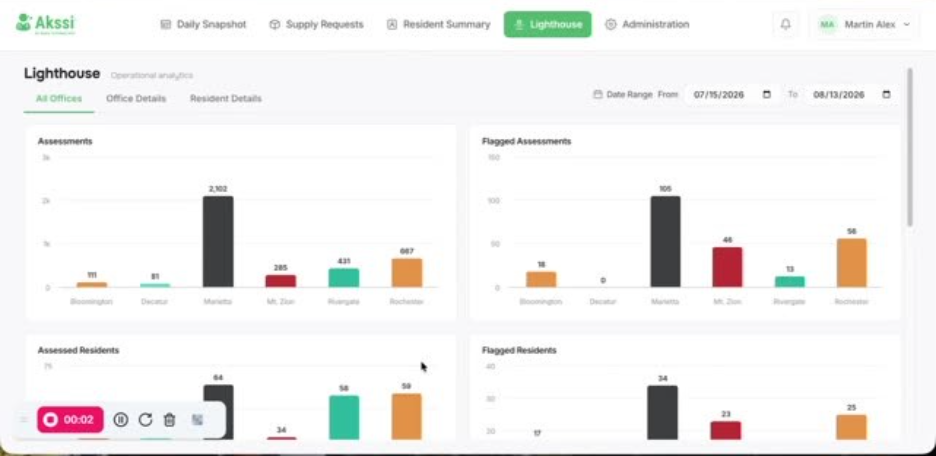
- Confirm you have the right access/permissions (typically leadership) to view your office and any other permitted offices.
- At the top of the page in the upper right-hand corner, select the date range you want to review.
- Apply the date range selection.
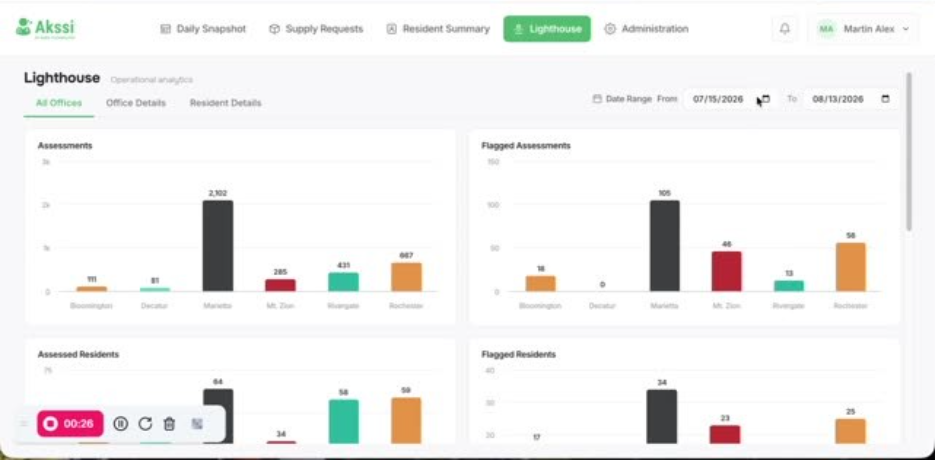
- You can then review the high-level metrics shown for the selected time period:
- Number of assessments
- Number of flagged assessments
- Number of assessed residents (unique count)
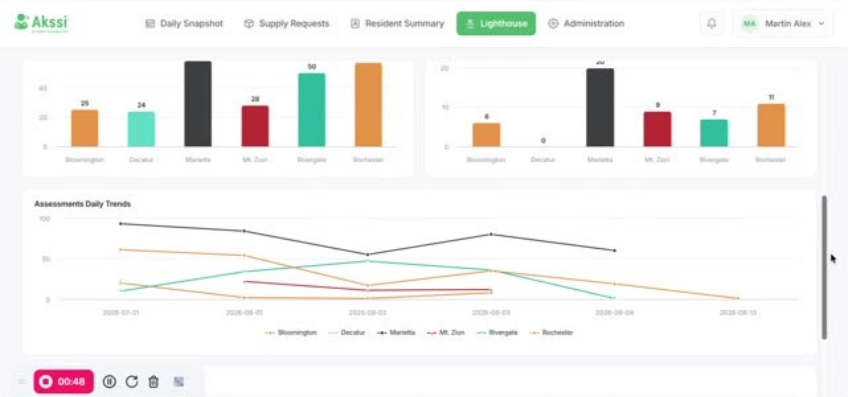
- Use the Assessments Daily Trends view to see whether Daily Snapshot activity is increasing, decreasing, or stable.
 \
\ - Click into any metric (assessments, flagged assessments, assessed residents, flagged residents, trends) to open sub-details that break down the high-level numbers.
- As an example, In the drill-down view, you can review Assessments by Creator.
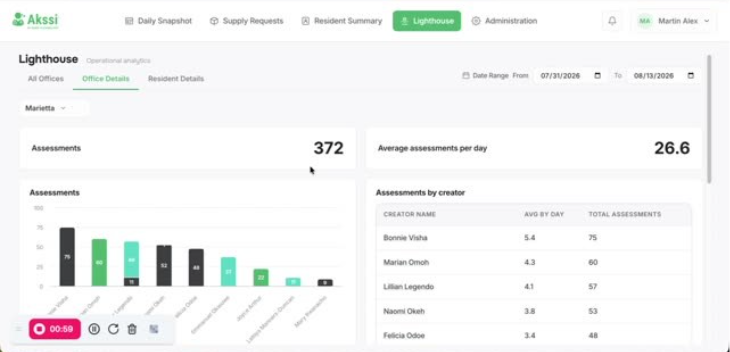
- As an example, In the drill-down view, you can review Assessments by Creator.
- Continue reviewing deeper breakdowns such as:
- Time of Snapshot
- Average snapshots per day
- Flagged snapshots
- Who flagged each snapshot
- Which residents were flagged
- You can also interact with the graphs which are clickable to drill further into the data.
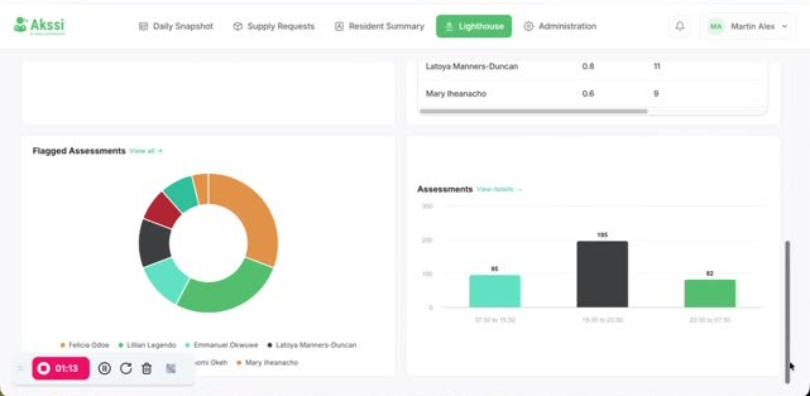
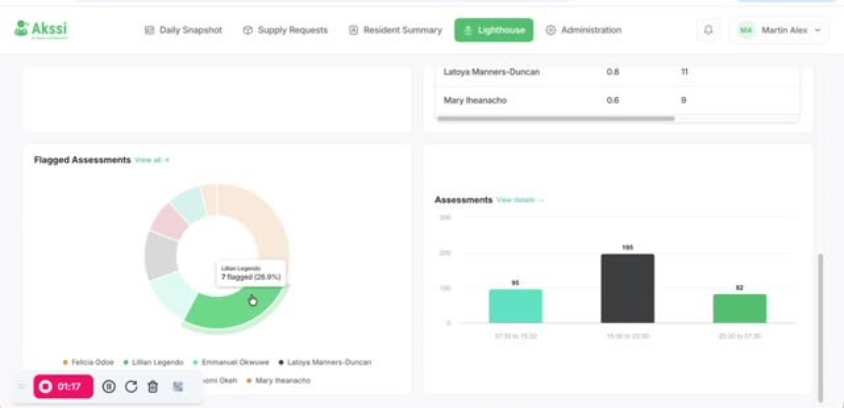
- Click a resident (or flagged entry) to dig even deeper into their related details.
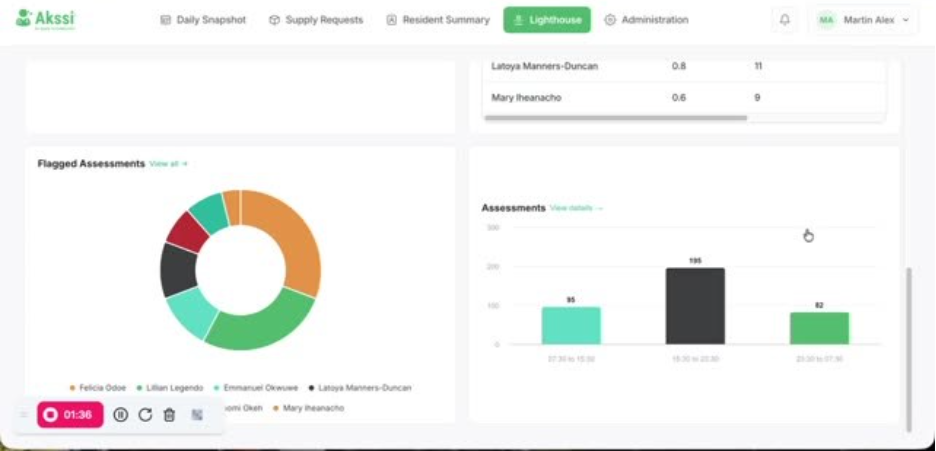
- Click on the tab Resident Details.
- In Resident Details, review:
- Number of assessed residents during the time period
- Total number of residents for that location/time period
- Use the Resident Details breakdown to see who is flagged.
- Also review who is not flagged.
- Open Flag Assessment details to see what was flagged and why.
- Use search to find a resident by first/last name, MRN, or room number.
- Enter a search value and confirm matching results appear.