Please Note: The resident’s primary contact should be maintained in your EHR and will automatically sync to Akssi. Use the Create New Resident Contact option only when adding an additional contact for a resident whose primary contact has already synced from the EHR.
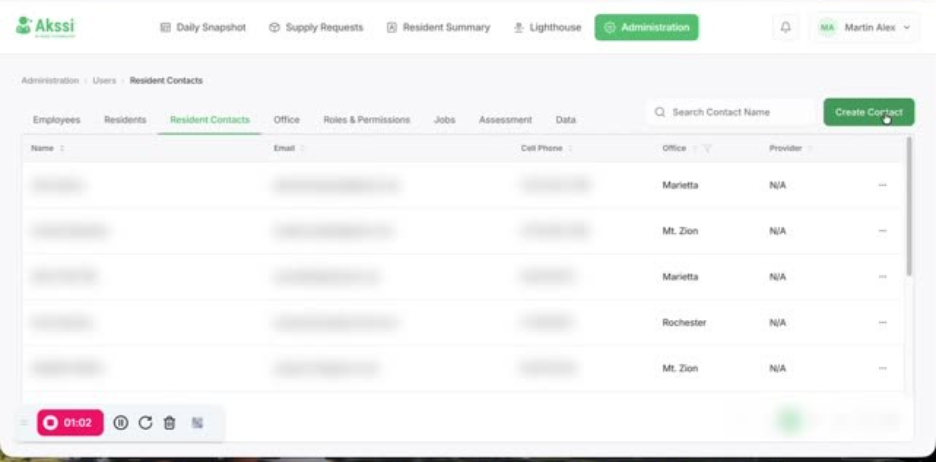
- In the Administration tab, open Resident Contacts, then click Create Contact.
- Search for the resident the new contact should be associated with.
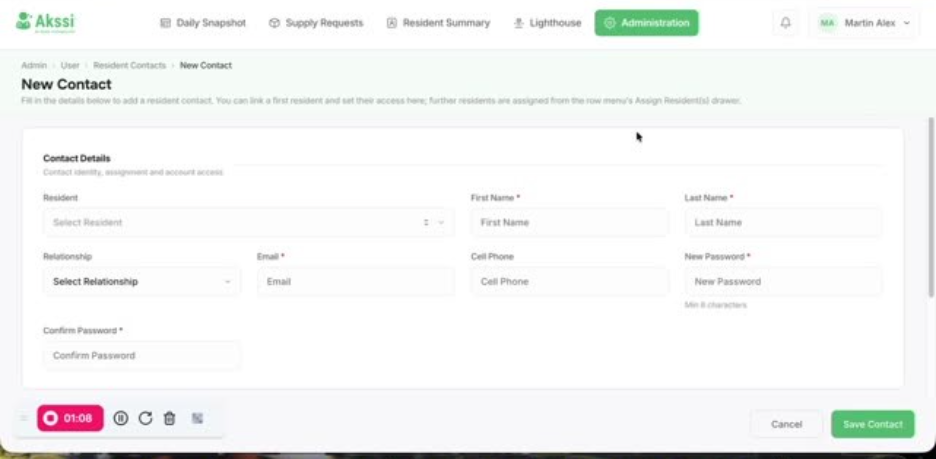
- Enter the contact’s name (first and last).
- (Optional) Add Relationship and any other optional details
- Enter the contact’s email address (use the correct email so they can reset their password later).
- (Optional) Enter the contact’s cell phone.
- Set and confirm the contact’s password (ensure it meets the minimum 8 character requirement), then scroll down to notification/access options.
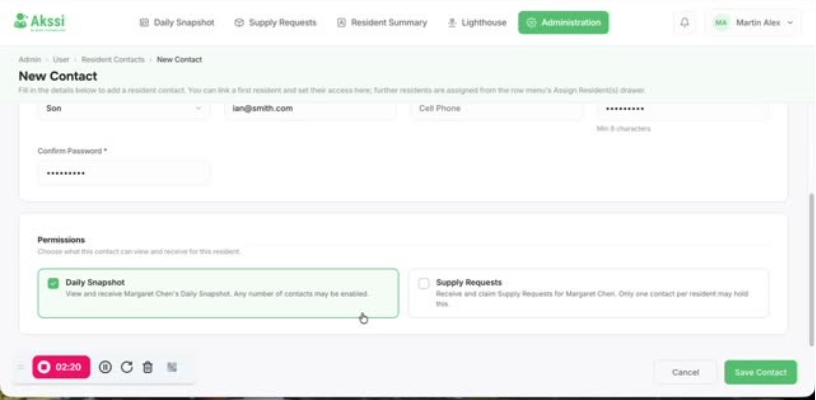
- Choose what the contact can receive/access:
- Daily Snapshot: every contact associated with the resident can receive and access this.
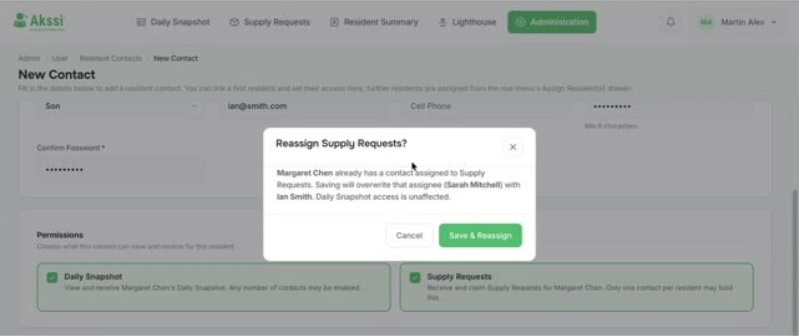
- Supply Request: only one resident contact per resident can receive this. If you check this box and there is already a resident contact assigned to receive the supply requests, when yoiu save the record you will see a pop-up that is asking you to confirm that you would like to change who the recipient of the supply requests to be this new contact
- Click Save.
- If Supply Request was already assigned to someone else, confirm whether to Save and Reassign (to replace the current recipient) or Cancel (then uncheck Supply Request if you don’t want to replace).
- After saving, you will be able to locate the new contact in Resident Contacts and edit details later if needed.