
erview
Akssi automatically evaluates daily resident snapshot entries to detect significant changes that may require a level of care plan update. When Akssi’s background algorithm identifies a meaningful shift in resident assistance needs (e.g., toileting, grooming, showering, and other snapshot items), it generates a proactive alert called a flag.
Purpose of a Flag
A flag indicates that Akssi detected a significant change in snapshot responses and is notifying the facility that the resident may need:
- A level of care plan reassessment
- An adjustment to the resident baseline within Akssi
- Snapshot questions are completed routinely (typically daily) for each resident.
How Akssi Detects Significant Changes
- Snapshot questions are completed routinely (typically daily) for each resident.
- Akssi processes snapshot history with an algorithm designed to detect significant deviations from baseline.
- When the algorithm threshold is met, the resident is flagged for review by leadership
How to Identify a Flagged Resident
A resident is flagged when you see:
- Akssi processes snapshot history with an algorithm designed to detect significant deviations from baseline.
- When the algorithm threshold is met, the resident is flagged for review by leadership
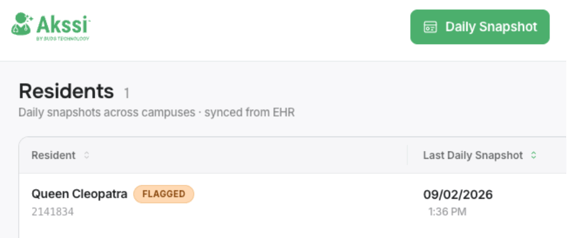
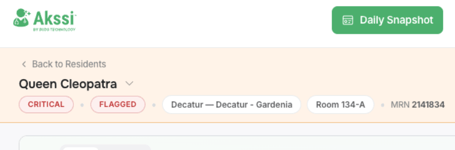
- A tag labeled “flag” visible on the main screen/resident listing.
- A beige visual indicator associated with the flagged state.
Viewing Flags in Historical Context (Graph View)
- Open the resident profile.
- The view may land on List by default.
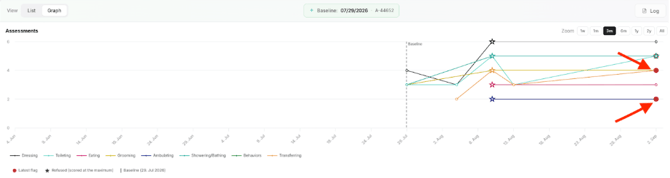
- Select Graph to view a wider historical timeline.
- Look for red circles on the graph.
- Each red circle indicates a flag event (i.e., a snapshot change that required attention).
Reviewing a Flag (What to Check)
The responsible staff member should review:
- The most recently established baseline
- The snapshot data that triggered the flag
- The specific areas where assistance level changed (e.g., increased or decreased support needed)
This review supports determining whether a care plan change and/or baseline update is required.
Clearing a Flag
Clearing a flag confirms that the flagged resident has been reviewed for potential level of care change.
Clear Flag Workflow
- Open the flagged resident’s record from the Daily Snapshot tab
- Select Clear Flag.
- A confirmation prompt appears emphasizing that a flagged resident requires assessment of whether their level of care and baseline require an adjustment.
- Enter a required comment explaining why the flag is being cleared and/or what action was taken.
- Example comment: “Resident level of care plan change; baseline changed.”
- Confirm by selecting Yes.
Result After Clearing
- The flag indicator is removed.
- The Clear Flag button is no longer visible for that resolved flag.