
- Navigate to Daily Snapshot, search for the resident, and open their resident record.
- In the resident’s Daily Snapshot area, review the list of snapshots that have been completed.
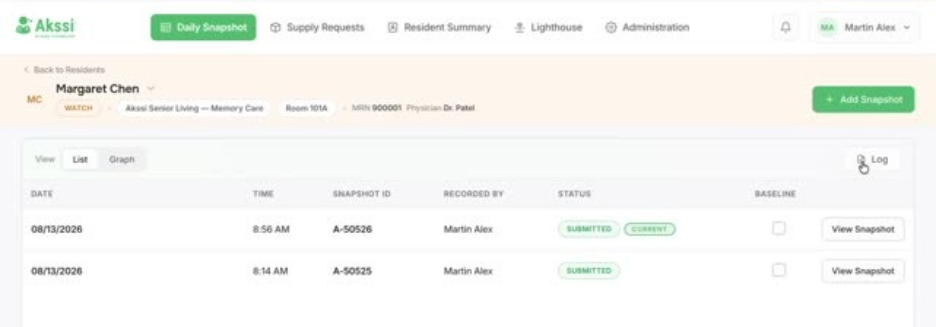
- Identify which snapshot is the most current and is one that you want to set as the new baseline. Look for the Current tag indicating the latest snapshot.
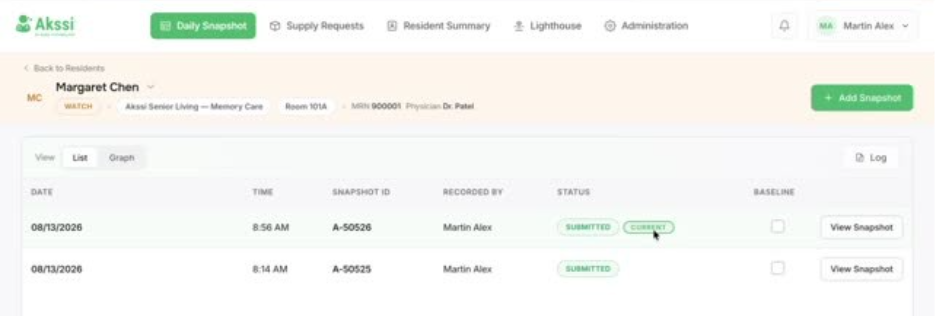
- Open the snapshot to review it and to access previously recorded snapshots.
- Click Log to check whether any baseline changes have previously occurred.
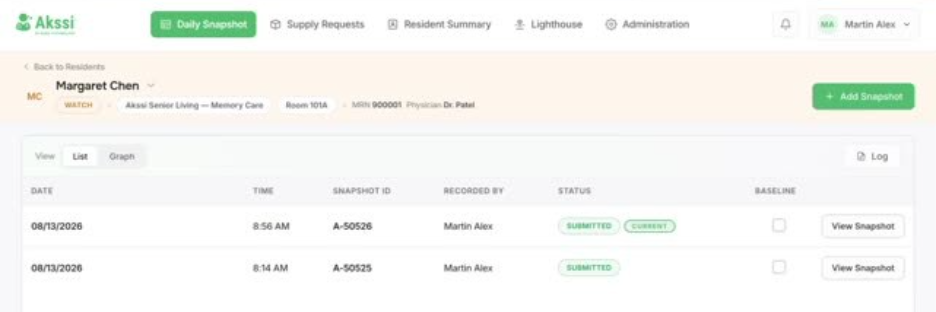
- If you have access, use this screen to change the baseline directly by clicking the checkbox to the right of the snapshot.
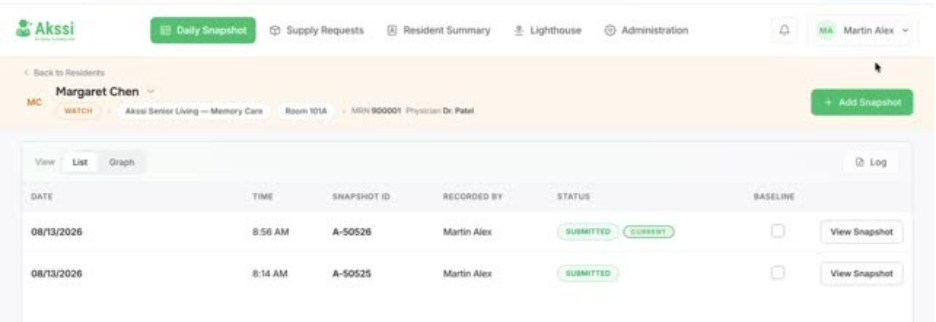
- Then confirm the prompt asking if you want to change the record. Note that confirming will set the selection as a new baseline.
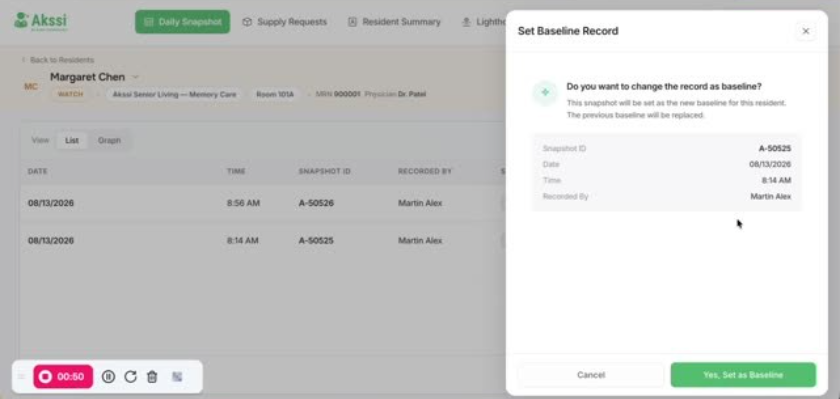
- Click Yes, set as new baseline.
- To verify that the system updated it—look for the indicator showing it is now the baseline.
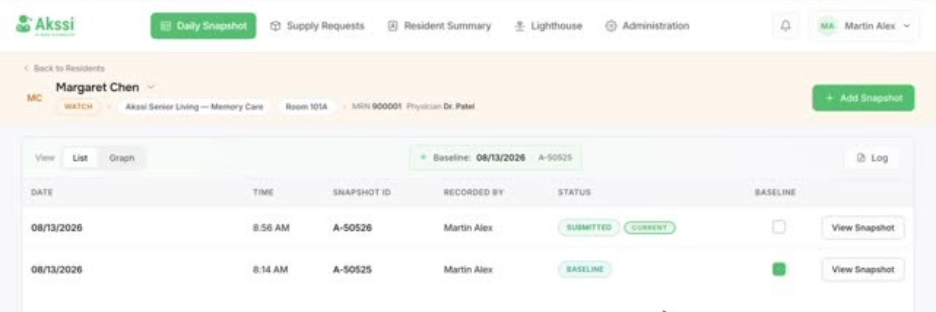
- Return to Log to confirm the audit details (who changed it, when, and what it changed from).
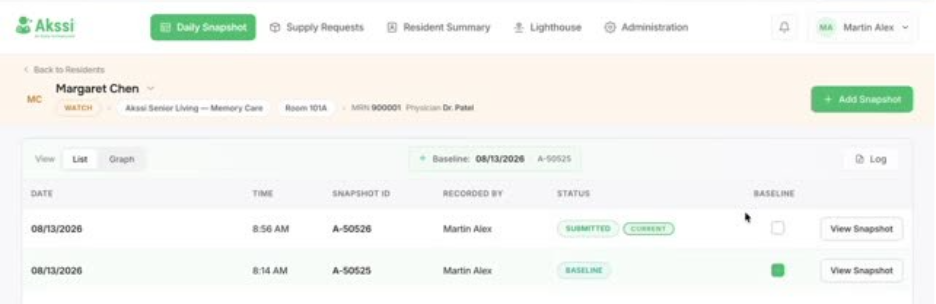
- Baseline change is complete.