Creating a New User
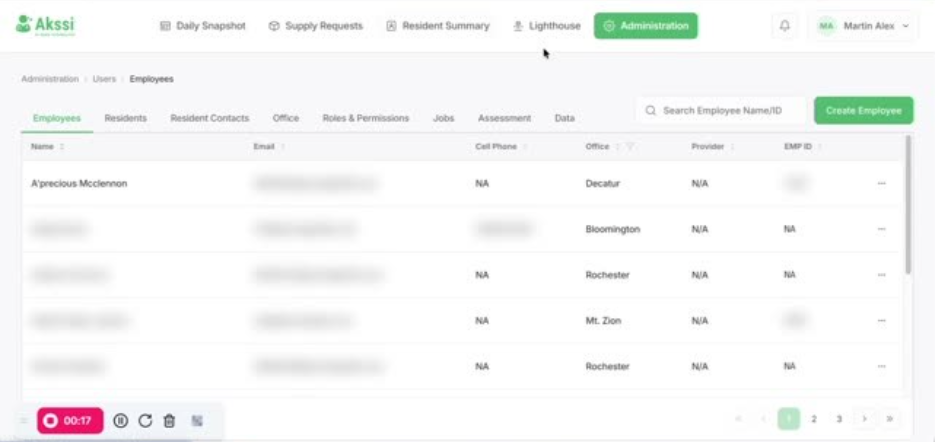
- In the app navigation, click Administration (leadership access required). You’ll land on the Employees tab by default.
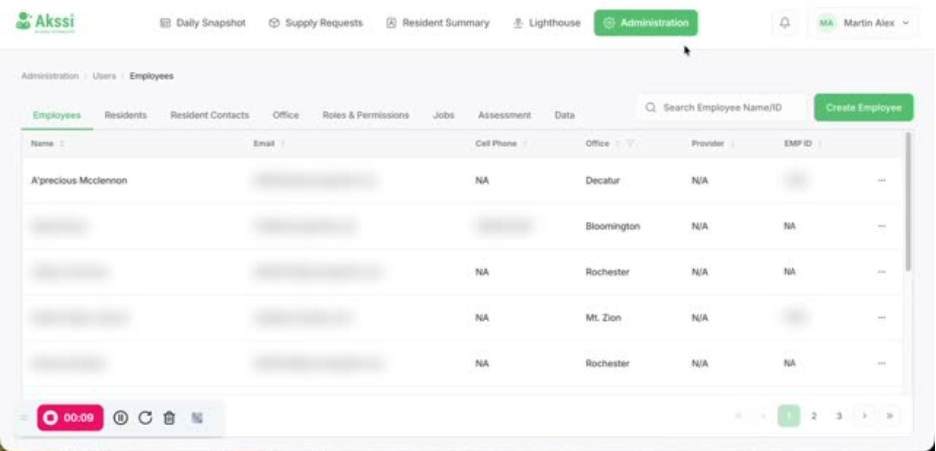
- Click Create Employee to open the new employee form.
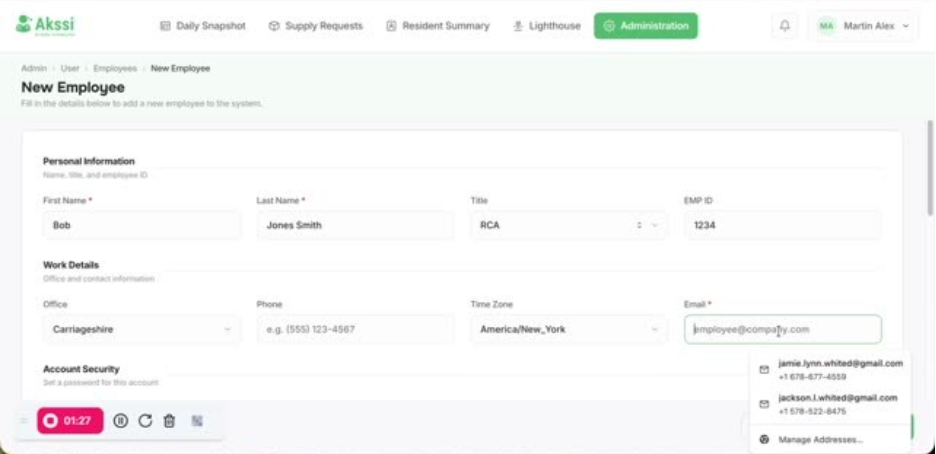
- Enter the employee’s Name (example shown in the video: Bob Jones Smith).
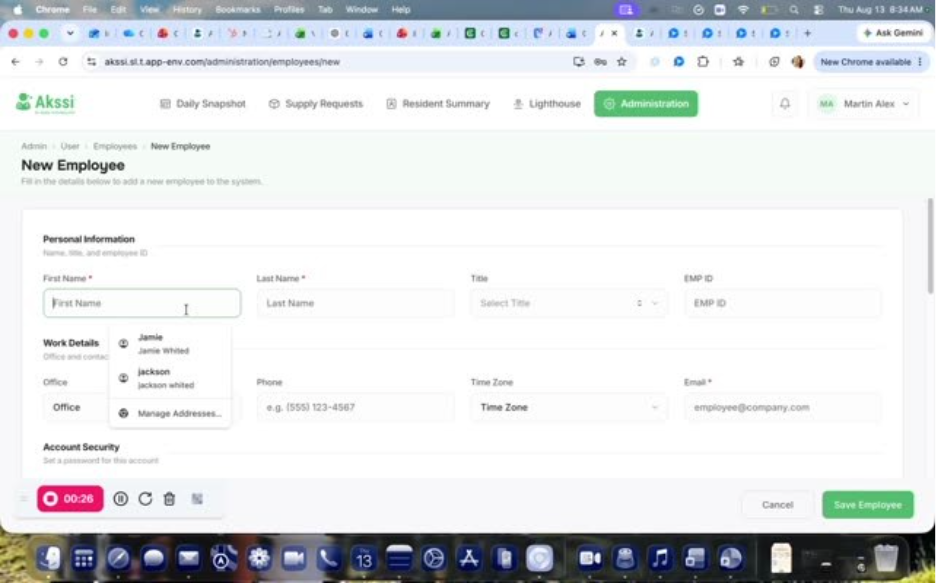
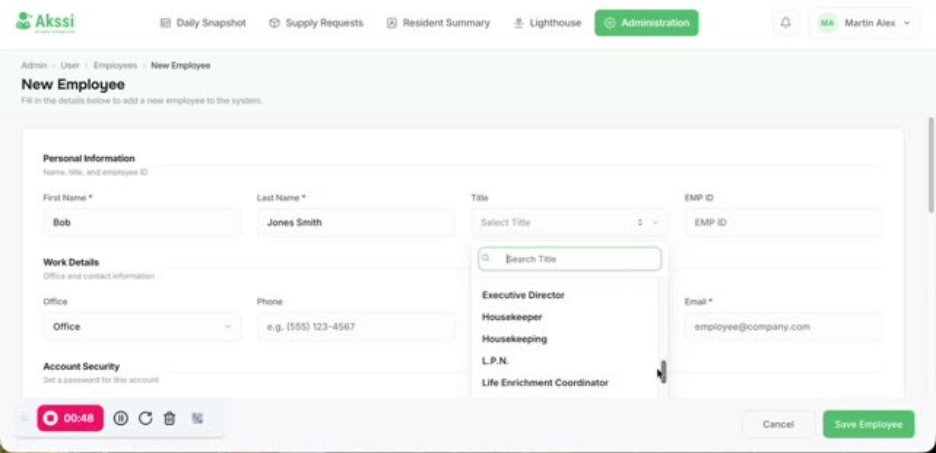
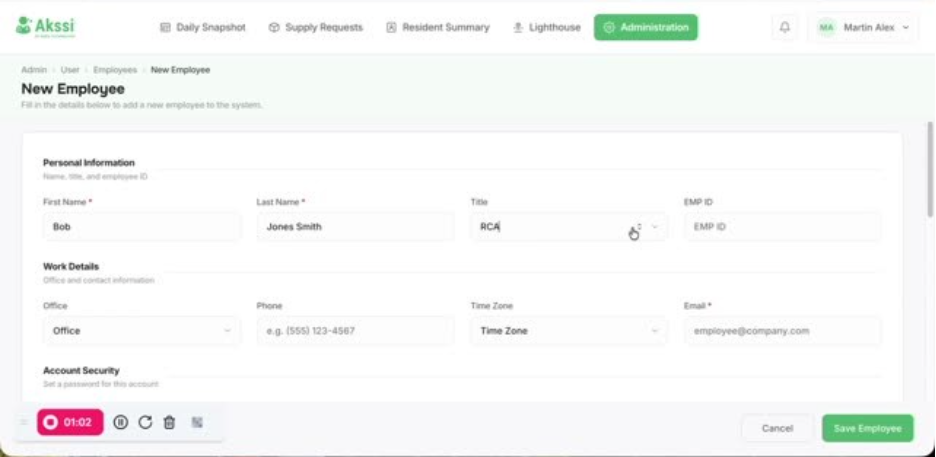
- Select the employee Title (this is critical because it determines the employee’s role and permissions). Example: choose RCA.
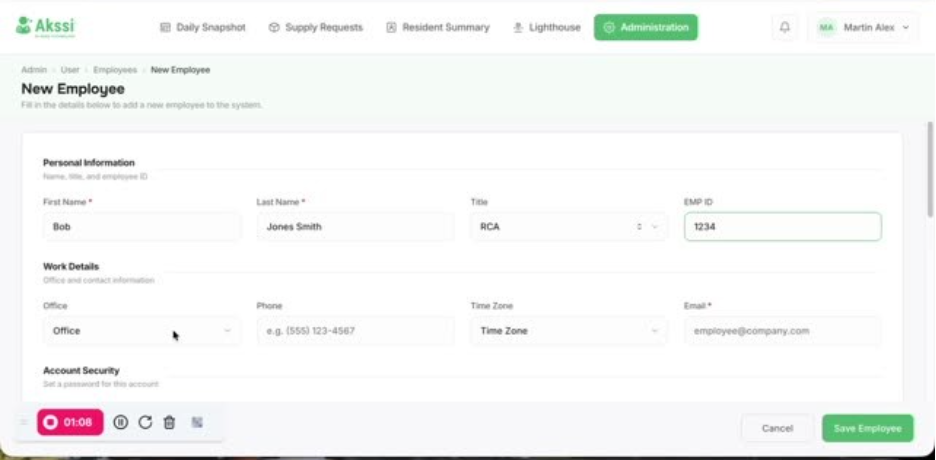
- Enter the Employee ID (use the employee’s Paylocity ID).
- Choose the employee’s Office location.
- (Optional) Add a Phone number.
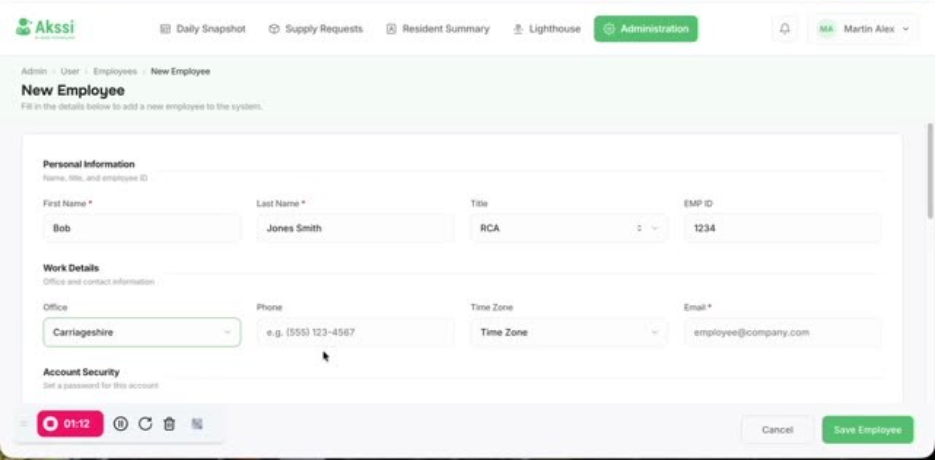
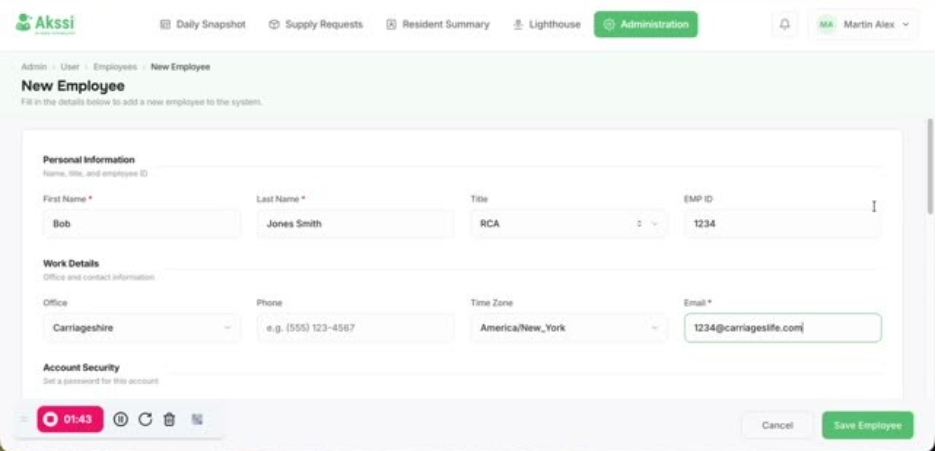
- Select the employee Time zone
- Enter the employee Email using the required format: {EMPLOYEESPAYLOCITYID}@carriageslife.com as most employees will not have a “real” email
- Example: 1234@carriageslife.com
- Set the employee Password and confirm it. Use something simple they can remember, and make sure you tell them what it is.
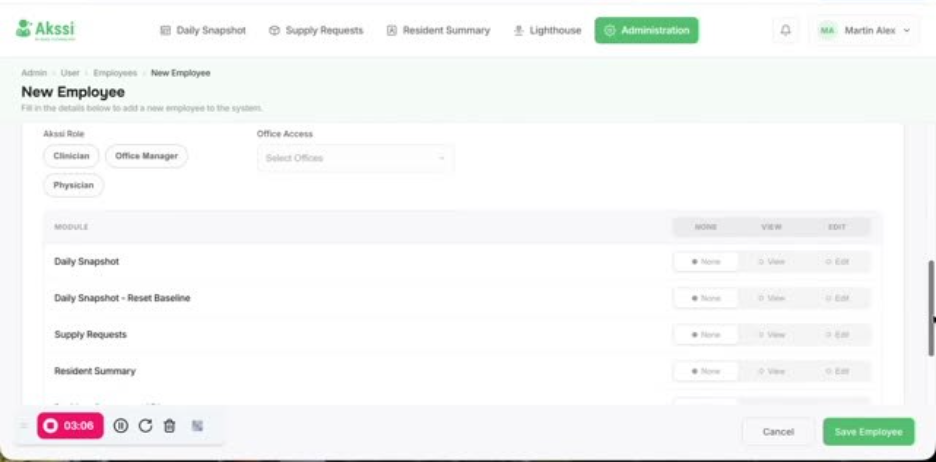
- Important: Do not select anything under Overriding permissions or roles (roles are already mapped to titles; only use overrides if a title has no role).
- Click Save employee to create the employee.
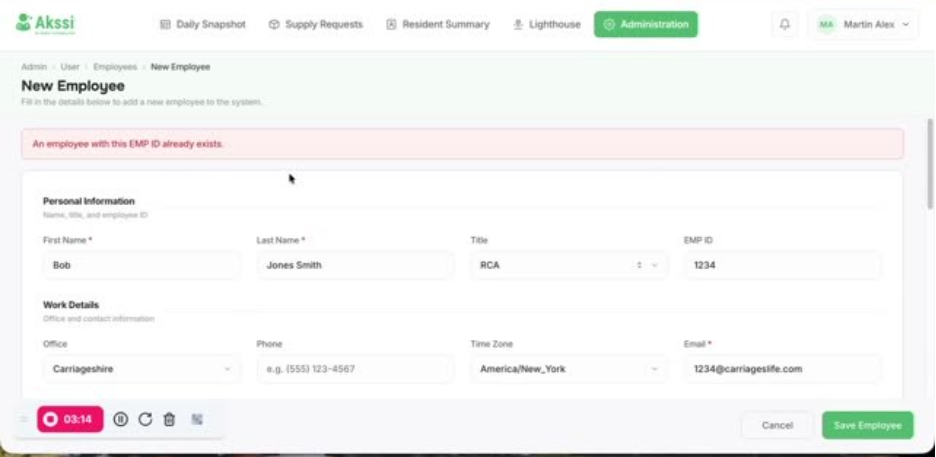
- If you see an error that the Employee ID already exists, change the Employee ID and click Save employee again.
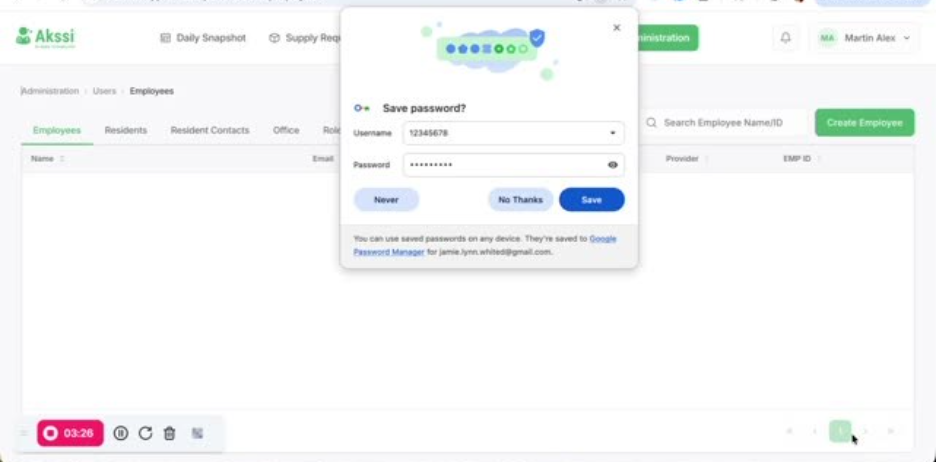
- Confirm the employee is saved, and do not save their password anywhere that could overwrite your own stored credentials.