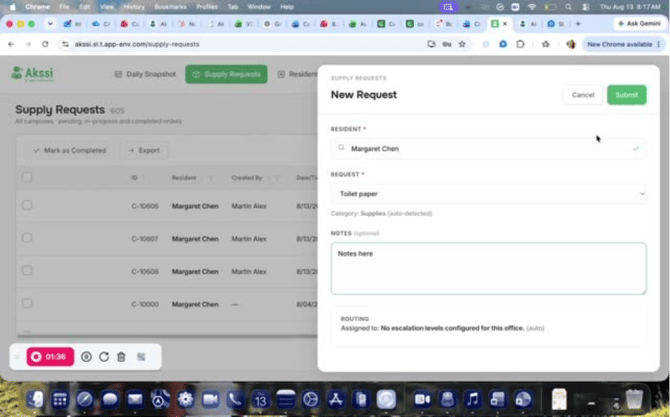
Adding a Supply Request
Adding a supply request from a Daily Snapshot
- Open a resident profile, then click Add Snapshot.
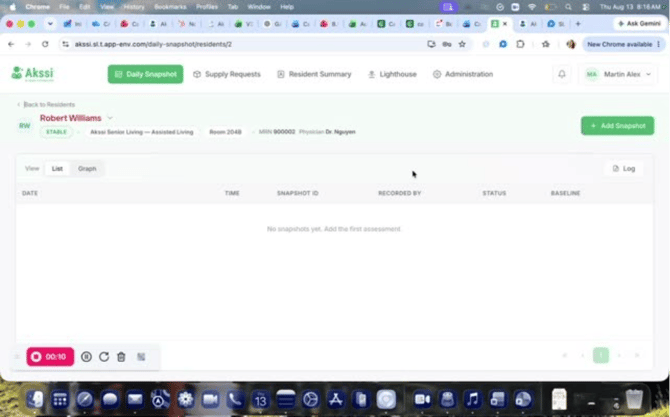
- In the snapshot, locate the care categories (e.g., Dressing, Grooming, Showering, Bathing, Toileting) where supplies can be added.
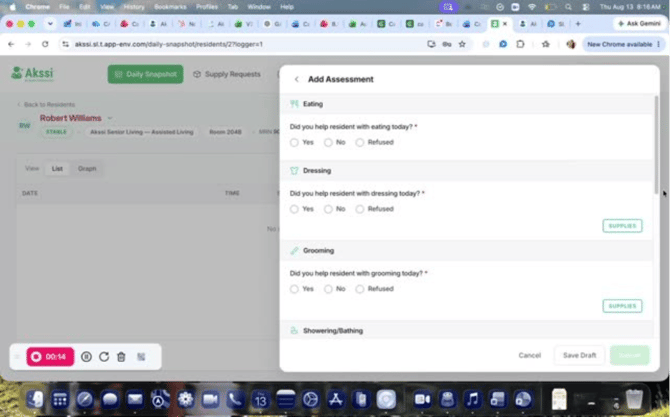
- Click Supplies for the relevant category.
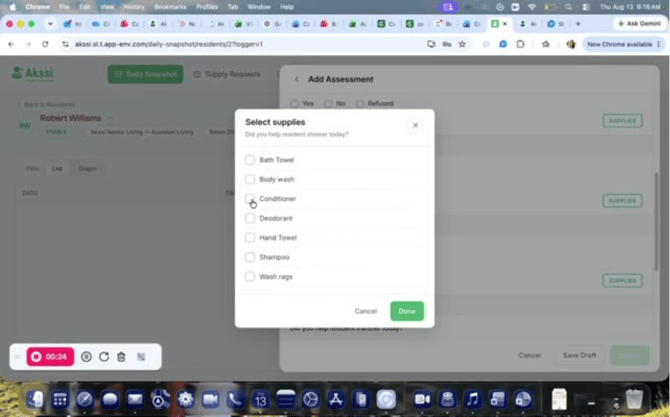
- Select the needed supply item(s), then click Done to add them to the supply request automatically.
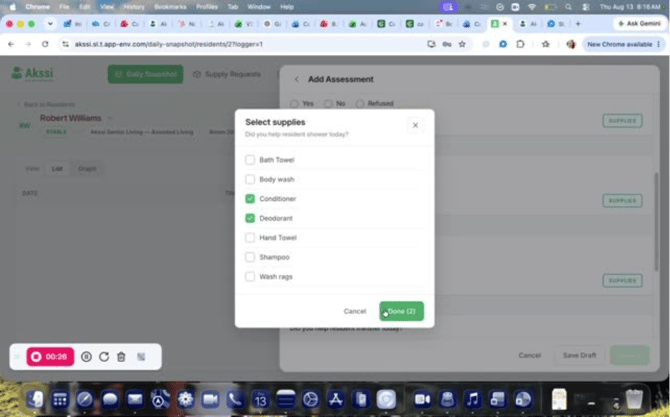
- Submit the assessment to finalize the supply request.
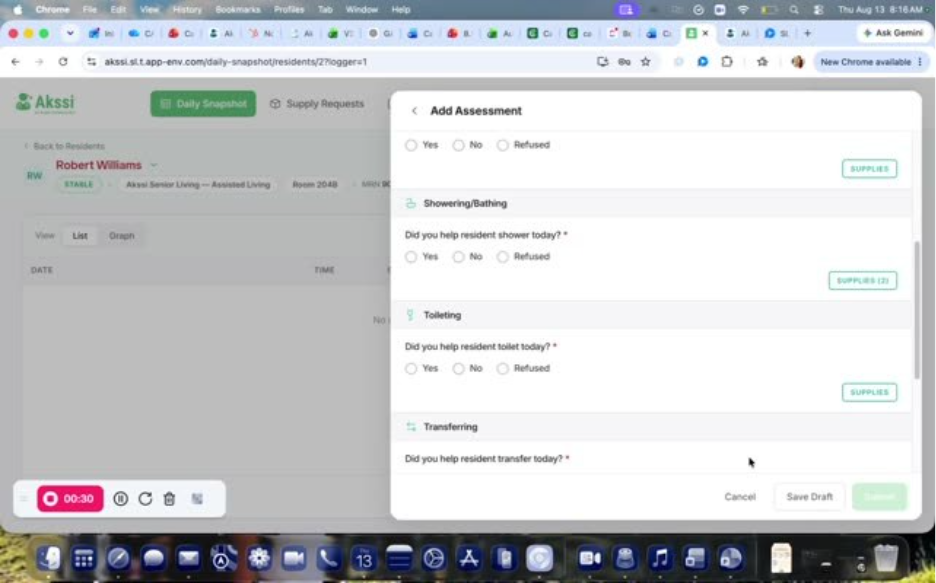
- If an assessment is already submitted and you realize a different supply is needed, go to Supply Request instead of starting a new daily snapshot.
- (Optional) Filter requests by Status, Office, Date, and Time.
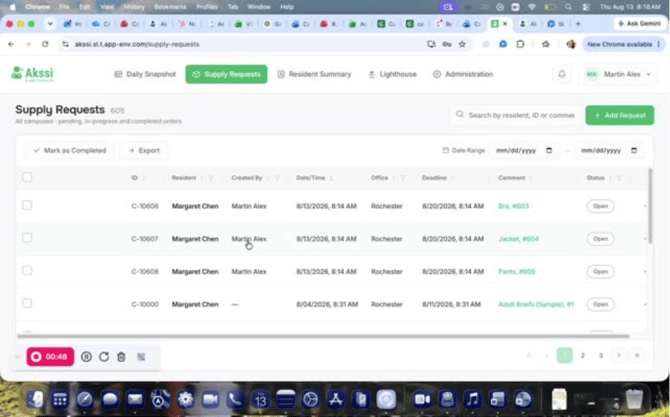
- Click Add Request.
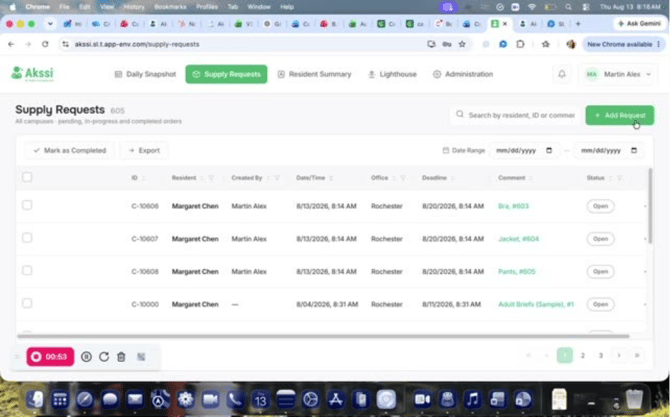
- Search for the resident you want to create the request for.
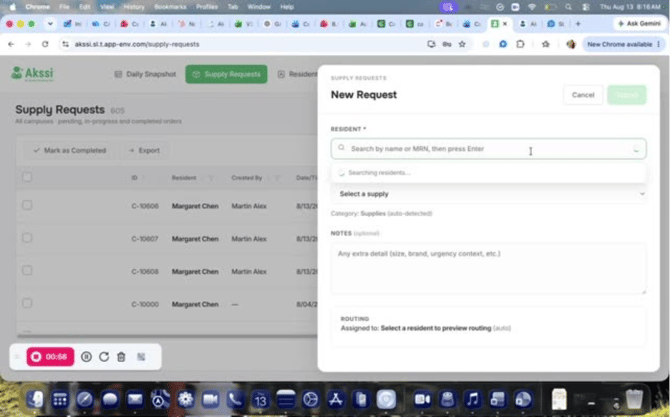
- Select the resident from the search results.
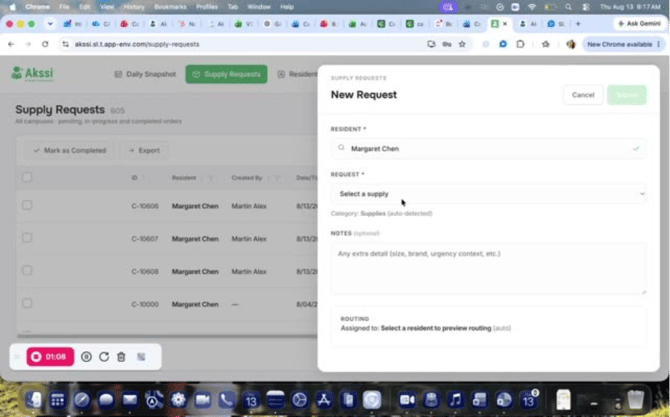
- Choose the supply/request item needed.
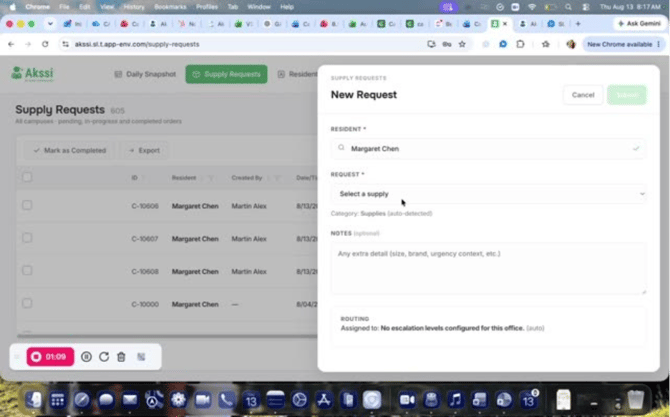
- Add any extra notes if needed.
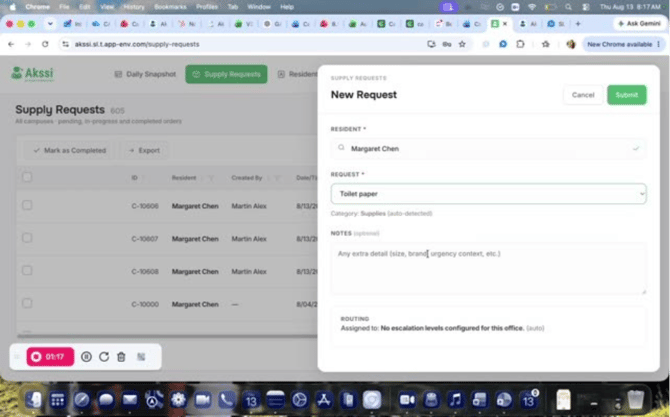
- Verify where the request will be routed (typically to a resident contact if one is associated; otherwise to leadership).
- Click Submit to place the request in the system.