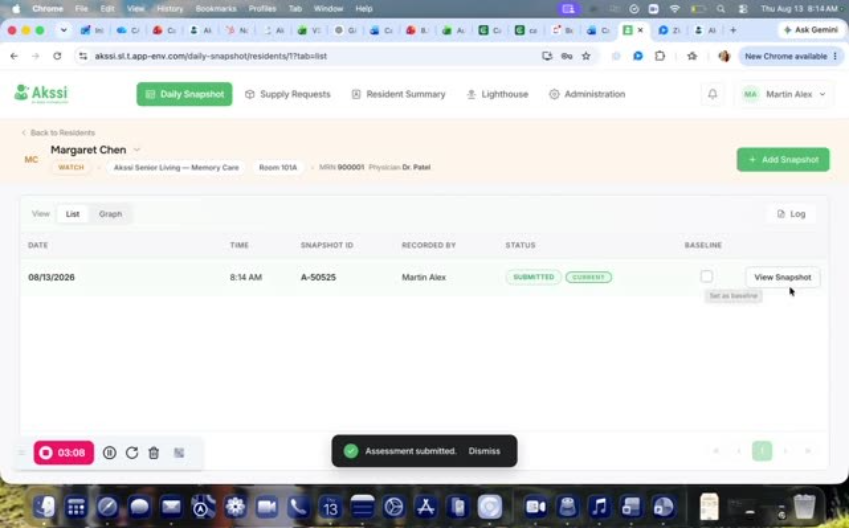
Adding a Daily Snapshot
- Log into the new Akssi and confirm you land on the Daily Snapshot page
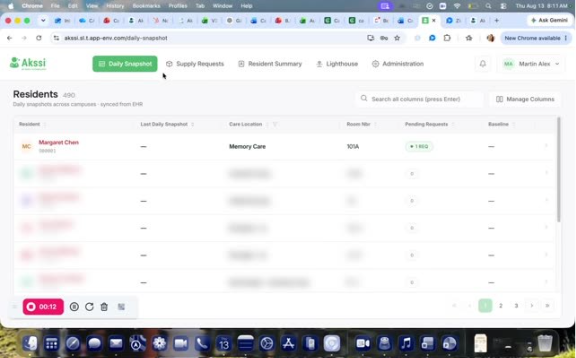
- Review the resident list for your specific location (you’ll only see residents for that location).
- Click the resident you want to create a snapshot for.
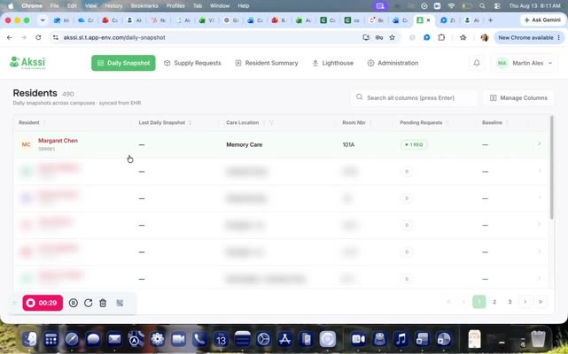
- In the upper-right corner, click Add snapshot.
- For each snapshot question, select the appropriate option (Yes, No, or Refused).
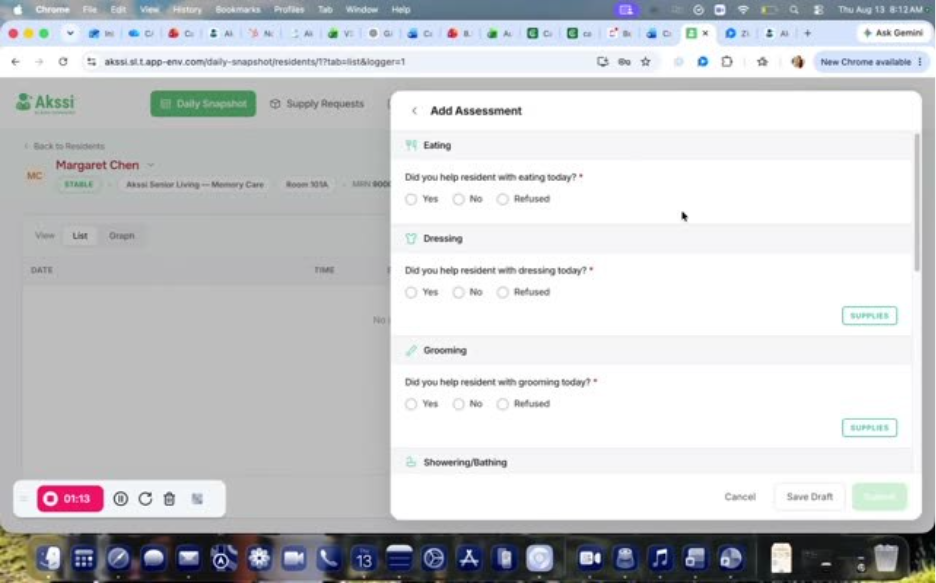
- If you select Yes, choose what you helped the resident with.
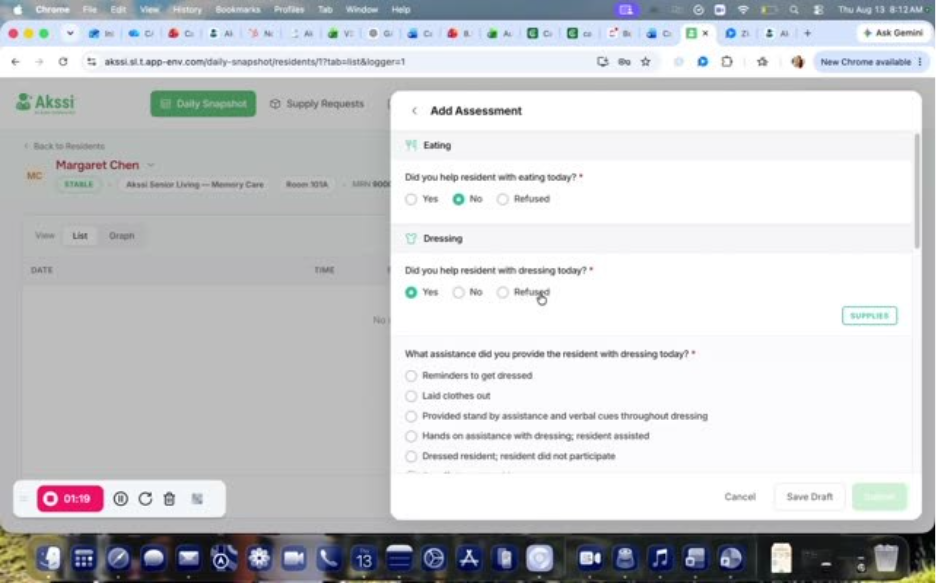
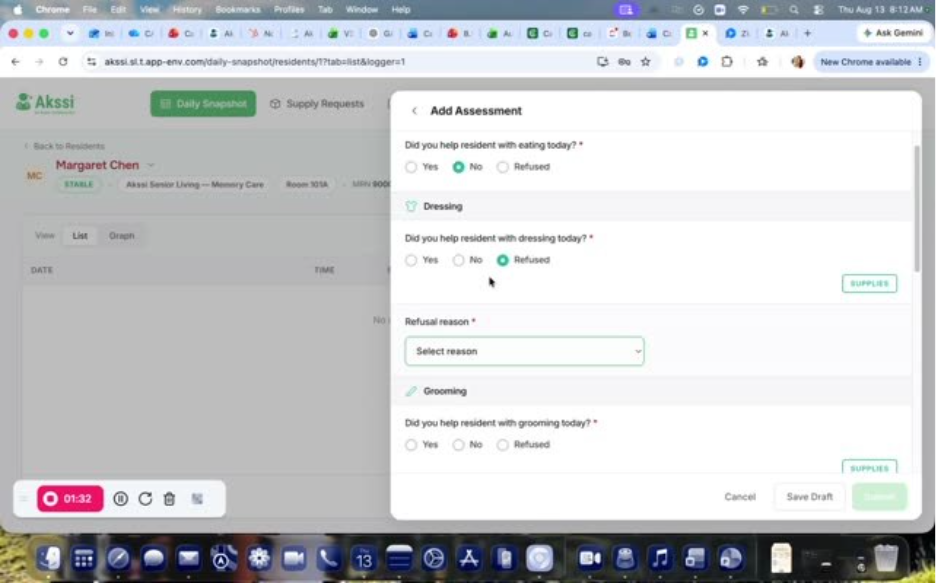
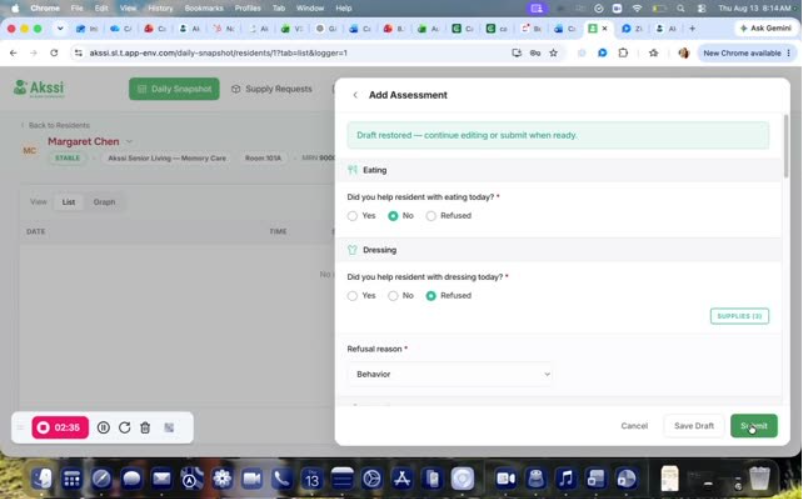
- If you select Refused, select the refusal reason (e.g., out of facility, not feeling well, behavior).
- If the refusal reason is Behavior, select the specific behavior type.
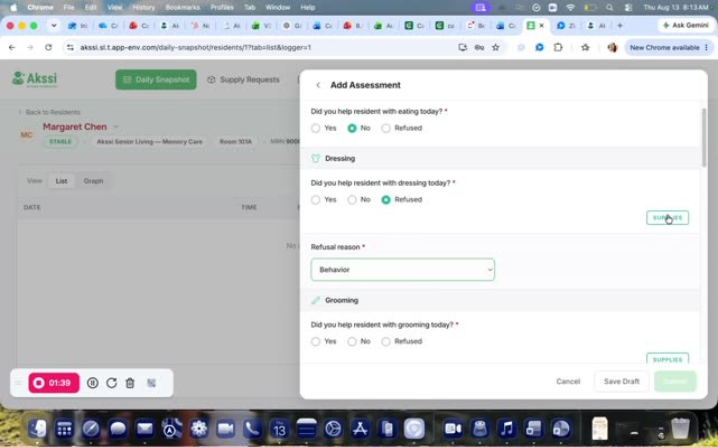
- (Optional) Add supplies: click Supplies on the right, select one or more items, then click Done.
- Complete the remaining questions in the snapshot form.
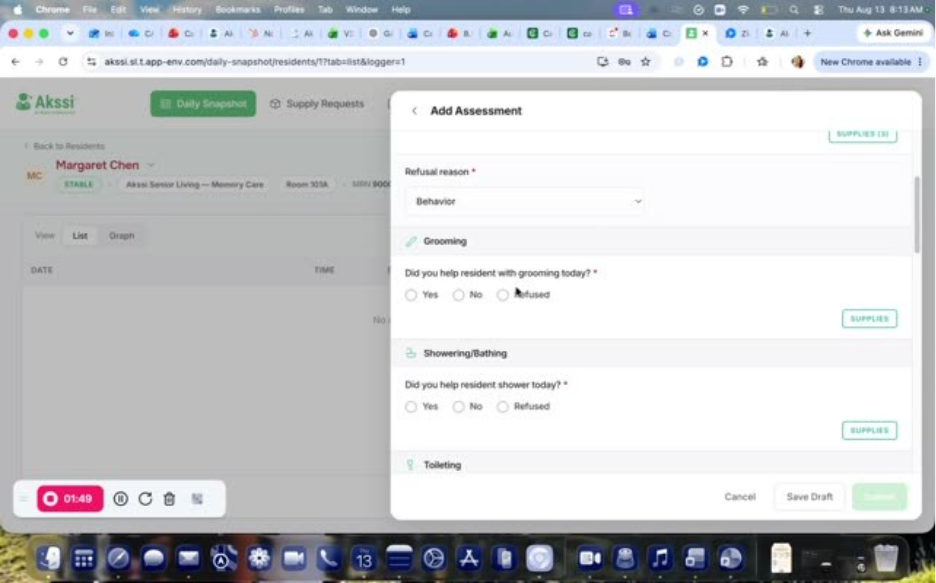
- When finished, click Submit to record the snapshot.
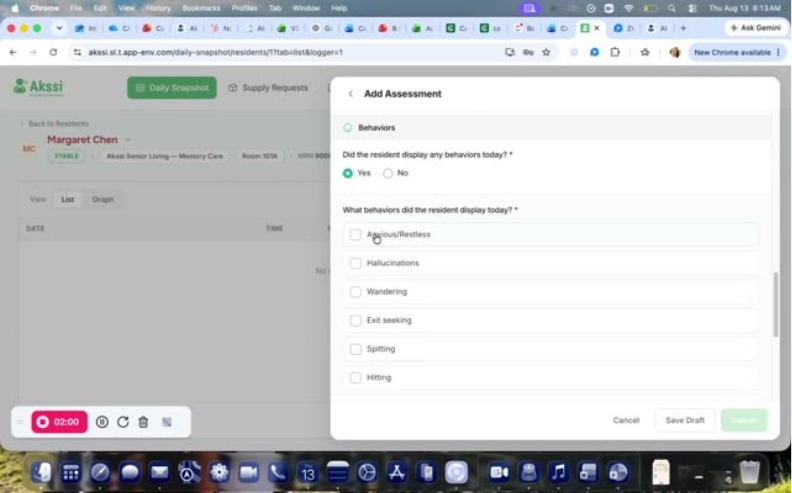
- If you get interrupted, click Save draft instead of submitting.
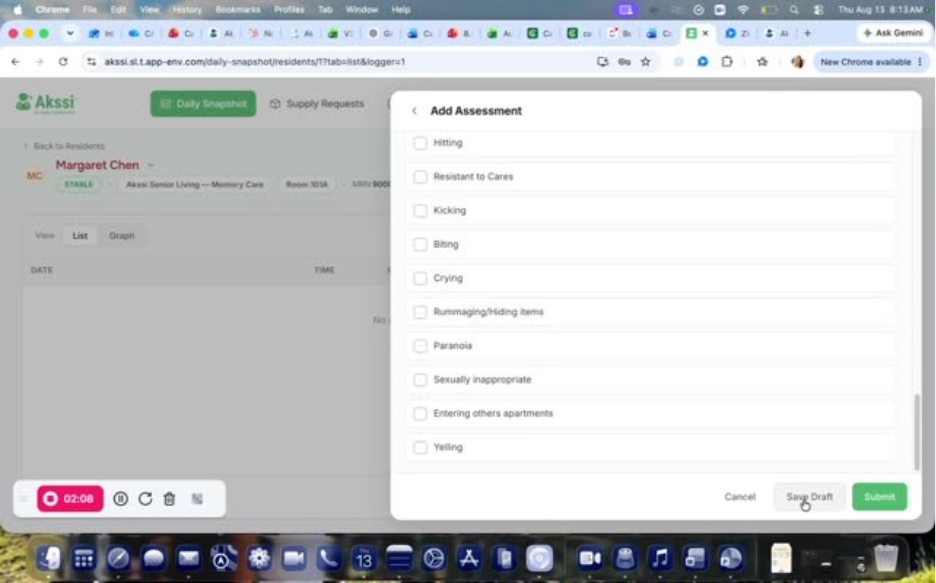
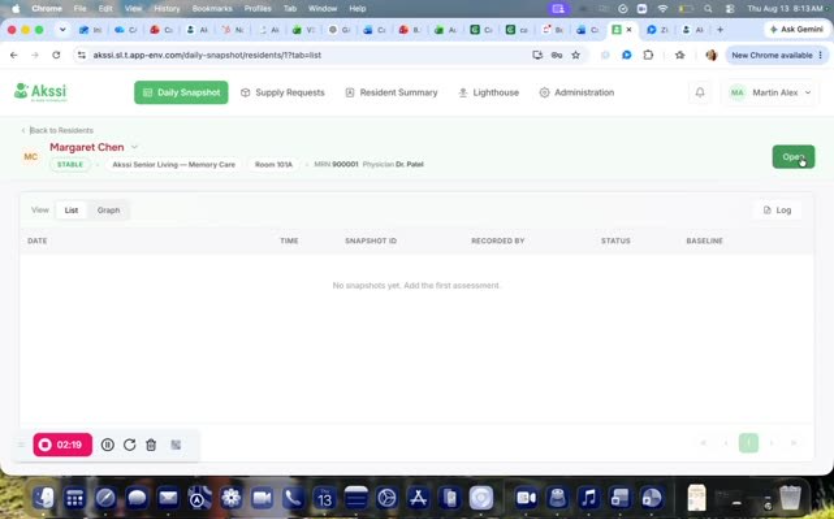
- To continue a saved draft, click Open (note: while a draft is open, a new snapshot can’t be started until it’s canceled or submitted).
- If no one submits the draft by the end of the day, the system will automatically submit what was filled in.
- After submission, confirm the snapshot appears in the list with details like time, snapshot ID, and who recorded it (baseline options may appear depending on permissions).
- Click View Snapshot to open and review the submitted snapshot.